Playto: Learn Languages Through Games




Description
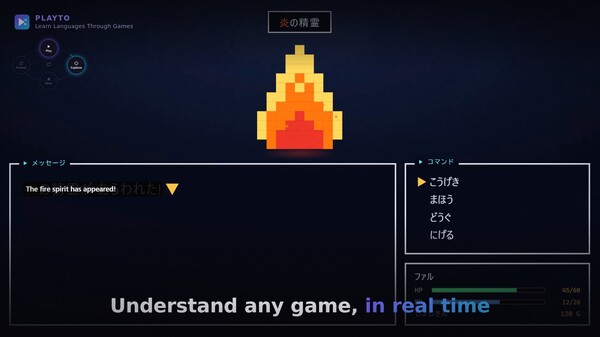
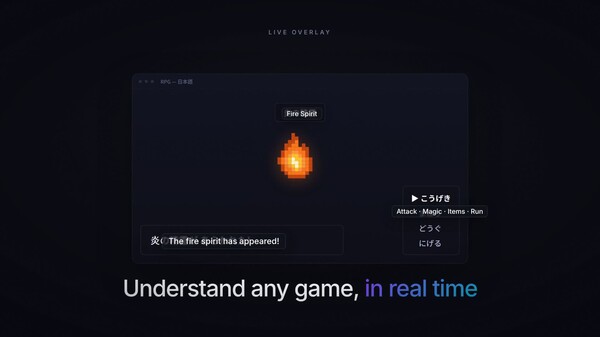
Learn a language through the games you love. Playto reads the text on your PC game screen and shows the translation right there — JRPGs, visual novels, strategy games, anything with text on screen. Keep the words that catch your eye in your Word Book and review them later.
What Playto is
Before you buy, here is what Playto does and does not do.
Reads the screen, shows the translation where you want it — Next to the original, at the bottom of the screen, or anywhere you place it. Playto never touches the game's files, so unlike a mod or a translation patch, the text inside the game is not replaced.
Ready as soon as it's installed — No detailed setup. Launch your game, choose where to read, and it works.
Machine translation by AI on your PC — No translation is perfect. The original is always shown alongside, and you can retranslate any line you don't like from the Log.
Some games can't be read — Games whose anti-cheat blocks screen capture can't be read. Borderless windowed mode is recommended. Fullscreen games work too if you set the area on Playto's preview.
A translator and a language-learning tool — Keeping the words you read in your Word Book and making them stick through review is part of the job.
Translate any spot you point at — dialogue or UI
Whatever the game, you can read any spot you like — not just subtitles. Choose from four ways to read.
Cursor Follow — Reads the text wherever you point your mouse. For dialogue, menus and item descriptions. You can also translate just the sentence or the word under the pointer.
Fixed region — Keeps reading a set area, such as subtitles or a status bar.
Window mode — Translates the whole screen in the background and shows translations only when you want them.
Spot Translate — One key freezes a single frame; pick the words you want and only those are translated. For fast scenes and scrolling chat.
Translations appear wherever you want them on screen, so there's no need to pause the game.
A small bar on top of the game, right where you play

In resident mode, instead of switching to the Playto window, a small bar appears on top of the game. Playto recognizes the game you're playing, and when you switch games the bar follows.
Change how it reads — Switch between Cursor Follow, fixed region and window in the bar's settings (⚙). You can re-place the reading frame on the spot, too.
Adjust the look — Text size and background opacity on sliders; put the translation at the bottom of the screen, next to the original, or anywhere you like.
Spot Translate — From a button on the bar, freeze one frame of the screen and translate only the words you want.
Control it with keys — Pause, switch between auto and manual, and show or hide translations with shortcut keys. The bar shows its state — not started, auto-translating, waiting or paused — and only the buttons for it, with the keys, the game and the languages listed underneath.
Fits your screen — and your taste
You decide how translations look, so they never get in the way of the game.
Position — Next to the original, in a bar at the bottom, or anywhere you like.
Look — Adjust background opacity and text size until it blends into the game.
Difficult-word highlights — Hard words in the original are colored by difficulty.
Several areas at once — Dialogue, name plates and quest logs, each translated at the same time.
Speed while you play, accuracy afterwards
While you play, the point is to understand the game and keep going — so translation never keeps you waiting.
During play — A small model answers on the spot.
Word explanations and re-reading — These can wait, so a larger model handles them.
A larger translation model — On a PC with a strong GPU, switch to Hy-MT2 7B: names, game terms and numbers come out right more often. It needs about 8 GB of VRAM and answers more slowly.
Fix any line you don't like — Retranslate or edit from the Log, and pin how character names and terms are written with the Glossary (a per-game term list).
After playing, grow your Word Book
So the words you read don't just slip by.
Session review — When you stop playing, look back over the text you met today. You can put it off and open it later from Home.
Saving is easy — Words that came up again and again are already suggested; check them and save the ones you want.
Difficulty badges — JLPT N5–N1 for Japanese, CEFR A2–C2 for other languages, so you can tell at a glance which words deserve attention.
Keep the scenes you played, in an album
Words are easier to remember with the scene they appeared in — so Playto keeps the whole screen.
Keep the scene — The screen as you saw it, the original text and its meaning, saved scene by scene.
Review anywhere with Anki — Export the album in Anki format (.apkg) and review the scenes on your phone's Anki app or wherever you like. The Word Book exports as TSV, too.
Make it stick with review and quizzes
The words you kept, one more time before you forget them.
Reviewed before you forget — Saved words and sentences come up on a spaced-repetition (SRS) schedule that follows the forgetting curve.
8 quiz modes — Flashcards, multiple choice, fill-in-the-blank, dictation and more.
A dictionary of your own — Your Word Book grows with every game you play.
Review on your phone — Scan a QR code and review your saved words in your phone's browser over home Wi-Fi while Playto runs on your PC. Playto Lite: 10 cards per session.
Reminders even with Playto closed — On days with words to review, a notification arrives at your reminder time (Windows).
Starts at your level — Set your learning level, and Session Review, practice and the Daily Review start from the words around it.
Two ways to read the screen
Pick the reading method to match how the game's text looks.
Text — Recognizes the characters on screen — fast and light. The one for everyday use.
Image — Hands the screen itself to an AI vision model. Decorative fonts, brush lettering, vertical text and lettering painted into the artwork can be read.
Image fallback (Standard edition) — In Text mode, only the spots text recognition can't read are read again by an image model, automatically. Needs a model that reads images.
Everything goes to the log — Every translation shown is kept in the log to read back after you play. Switch methods at any time.
Game Audio (Beta)
Lines that never appear on screen can be study material too.
Voice lines become text — Spoken lines are transcribed and translated while you play, and collected in their own log. Save a line you like with its audio clip.
Only the game's audio — Your mic, music apps and voice chat are never captured.
Availability — It listens in the language you are learning, any of the 23. Checked with Japanese and English. Standard edition on Windows 10 (2004) or later only; not in Playto Lite or on Linux. Uses extra CPU.
Playto Cloud
Cloud translation for PCs that can't run the local model well, such as laptops and PCs with integrated graphics. Off by default.
Works on low-spec PCs — Translation runs on our servers, so it uses no GPU or VRAM, and nothing has to download.
Free trial — Standard includes about 4 hours of Cloud translation for 14 days. Playto Lite includes a short trial too, so you can check that it works for you.
Packs on Steam — After the trial, buy packs in the app: S $1.99 (about 8 h), M $4.99 (about 22 h), L $9.99 (about 48 h). Hours are estimates for Text mode. Each pack is valid for 180 days and can't be refunded. Standard edition only.
Image mode too — Press the shortcut key (F4 by default) and the whole screen at that moment is read, so its lines are translated together, in context. Image mode uses Cloud time faster, so it runs only when you press the key.
A large model translates — Line by line. Not as fast as local translation on a PC with headroom to spare.
Before you buy — Not available in some regions. See our privacy policy for what is sent.
More features
Translations on your stream (OBS) — Add the translations to your stream as an OBS Browser Source. Works with Game Capture.
Automatic log — Everything you encounter is recorded. Check a meaning or a reading any time.
Local first — Translation runs on your PC, and once the models are installed it works without an internet connection. Screen text leaves your PC only when you use Playto Cloud. Anonymous usage statistics are sent only if you agree.
23 languages — Chinese (Simplified), Chinese (Traditional), Czech, Danish, Dutch, English, Finnish, French, German, Greek, Hungarian, Italian, Japanese, Korean, Norwegian Bokmål, Polish, Portuguese, Romanian, Russian, Spanish, Swedish, Turkish, Vietnamese.
FAQ
Will it run on my PC? — Check with the free Playto Lite (Windows). AMD and Intel GPUs are supported as well as NVIDIA. If your PC is short on VRAM, Playto Cloud can translate.
How fast is translation? — It depends on the amount of text, but about 1–2 seconds with the bundled model. If it's slower than that, your PC may not have enough power, so try Playto Cloud.
Looks like a lot of features — You can start by just choosing an area of the screen. Once you're used to it, change how it reads and how translations look to suit you.
Which games does it work with? — Any game that shows text on screen, in any genre. It never touches the game's files or memory. Games whose anti-cheat blocks screen capture can't be read.
Do I need the internet? — Once the models are installed, it works offline. Only Playto Cloud sends the recognized text (or, in Image mode, the image).
Lite or Standard? — Lite is the free version with the basic translation flow. Cursor Follow, resident mode, Game Audio and buying Cloud packs are Standard only.
Mac, Steam Deck, phone? — Windows and Linux (Standard edition). Mac and Steam Deck are not supported. On your phone, you can review the words saved on your PC in its browser over the same Wi-Fi.
Before you start
System requirements, and what the first few minutes look like.
About a minute to set up — The translation model comes bundled. Only language pairs that include Danish, Finnish, Hungarian, Norwegian, Romanian or Swedish need a separate model download (2–6 GB).
Tutorial and guides — On first launch, a practice game walks you through reading, translating, saving and reviewing once. When you're stuck, there are 50+ in-app guides and in-app support.
Try Playto Lite first — Local AI needs GPU VRAM in addition to your game (typically 2–4 GB). Playto Lite is the free version — please confirm it runs on your PC. Playto Lite is Windows-only. The PC specs screen shows how much VRAM each model leaves for your game. If your PC is short on VRAM, Playto Cloud translates without using your GPU.
Text-to-speech — Available for English, Japanese, Spanish, French, Italian, Portuguese and Chinese (Simplified, Windows).
Linux — Standard edition only. Runs on 64-bit Linux with glibc 2.39 or later (Ubuntu 24.04 or equivalent, or newer). Some features differ by OS and by desktop (KDE / GNOME, Wayland / X11); see for what works where. Steam Deck is not supported.
System requirements
WINDOWS:
- Requires a 64-bit processor and operating system
- OS: Windows 10 64-bit
- Processor: Intel Core i5 / AMD Ryzen 5 (with AVX2 support)
- Memory: 8 GB RAM
- Graphics: DirectX 11 compatible GPU. Local AI runs on the CPU by default; an NVIDIA (CUDA) or Vulkan-capable GPU enables faster acceleration
- DirectX: Version 11
- Network: Broadband Internet connection
- Storage: 5 GB available space
- Additional Notes: AI models (about 2–6 GB) download on first run. For GPU acceleration, keep your GPU driver up to date — 4 GB+ VRAM recommended. No dedicated GPU? CPU mode works (slower)
- Requires a 64-bit processor and operating system
- OS: Windows 11 64-bit
- Processor: Intel Core i7 / AMD Ryzen 7
- Memory: 16 GB RAM
- Graphics: NVIDIA GPU (CUDA) or Vulkan-capable GPU, 6 GB+ VRAM, with an up-to-date driver
- DirectX: Version 11
- Network: Broadband Internet connection
- Storage: 10 GB available space
- Additional Notes: Keep your GPU driver current (especially on the latest-generation GPUs). If CUDA isn't supported, Vulkan and CPU modes are available.
LINUX:
- OS: Ubuntu 24.04 or equivalent, or later (glibc 2.39+), 64-bit
- Processor: Intel Core i5 / AMD Ryzen 5 (with AVX2 support)
- Memory: 8 GB RAM
- Graphics: A Vulkan-capable GPU is recommended. Without one, Playto translates on the CPU (slower).
- Network: Broadband Internet connection
- Storage: 5 GB available space
- Additional Notes: Standard edition only (Playto Lite has no Linux version). Tested on KDE Plasma (Wayland and X11) and GNOME. The translation model and the libraries Playto needs (WebKitGTK and others) come bundled; your desktop needs its xdg-desktop-portal backend, installed by default on KDE and GNOME. KDE Plasma: everything available on Linux works with every game. GNOME on Wayland: Proton and X11 games work fully; with a game that runs natively on Wayland,translations stay at the bottom of the screen and you set the area on Playto's preview, and Cursor Follow is not possible. X11 sessions work the same on any desktop. Wayland-native games ask once which window to share. Not on Linux yet: Cursor Follow, Resident mode, Game audio, Chinese read-aloud. Vietnamese text cannot be read on Linux. Steam Deck is not supported.
- OS: Ubuntu 24.04 or equivalent, or later (glibc 2.39+), 64-bit
- Processor: Intel Core i7 / AMD Ryzen 7
- Memory: 16 GB RAM
- Graphics: A Vulkan-capable GPU with 6 GB+ VRAM and an up-to-date driver (Mesa or the vendor driver). Without one, Playto translates on the CPU (slower).
- Network: Broadband Internet connection
- Storage: 10 GB available space
- Additional Notes: Keep your GPU driver up to date. If Vulkan can't be used, Playto says why and translates on the CPU. What works on each desktop (KDE Plasma, GNOME, X11):